The Significance of Email Archiving Tools: Unlocking Efficiency and Compliance
Data Protection

The Significance of Email Archiving Tools: Unlocking Efficiency and Compliance

Introduction:

In today's digital age, email communication stands as the backbone of business operations, facilitating seamless interaction and data exchange. However, the overwhelming volume of emails poses challenges in managing, storing, and retrieving critical information efficiently. This is where email archiving tools like Mailbox and Veritas come into play, revolutionizing the way organizations handle their email data.              

Understanding Email Archiving Tools:

Email archiving tools are dedicated solutions designed to systematically capture, index, store, and retrieve emails. They offer a centralized repository for managing email correspondence, ensuring easy access, searchability, and regulatory compliance.  

The Value Proposition of Email Archiving Tools:

1. Enhanced Data Management:
  • Email archiving tools streamline data management by organizing emails into a structured repository. This allows for quick access to historical emails, reducing storage complexities and improving search functionalities.
  2. Improved Compliance and Legal Preparedness:
  • Regulatory bodies often mandate the retention of business records, including emails, for compliance purposes. Archiving tools assist in adhering to regulations like GDPR, HIPAA, and SOX by securely storing and managing emails for the required retention periods.
  3. Reduced Storage Costs:
  • These tools optimize storage by archiving older or less frequently accessed emails, thereby reducing the load on primary storage systems. This helps in cutting down storage expenses and enhancing overall system performance.
  4. Efficient eDiscovery and Retrieval:
  • In legal proceedings or internal investigations, quick access to relevant emails is crucial. Email archiving tools provide advanced search capabilities, enabling rapid retrieval of specific emails, attachments, or conversations, aiding in eDiscovery processes.
  5. Protection against Data Loss:
  • Archiving tools act as a safeguard against accidental deletion, data corruption, or system failures. They create backups of emails, ensuring data integrity and mitigating the risk of losing critical information.
    

Use Cases of Email Archiving Tools:

1. Litigation and Legal Support:
  • In legal disputes or audits, these tools offer comprehensive email retention and retrieval, aiding in compliance with legal obligations and providing evidence for litigation cases.
  2. Regulatory Compliance:
  • Industries such as healthcare and finance are bound by strict regulations. Email archiving ensures compliance with data retention policies and regulatory frameworks.
  3. Knowledge Management and Research:
  • Research-oriented institutions or knowledge-based businesses can benefit from the archival of past communications, facilitating historical references and preserving institutional knowledge.
  4. Employee Productivity and Efficiency:
  • By reducing mailbox clutter and allowing swift access to archived emails, these tools enhance productivity by enabling employees to focus on relevant information rather than sorting through an overloaded inbox.
  5. Business Continuity and Disaster Recovery:
  • Archiving tools serve as a part of the disaster recovery plan, ensuring continuity by preserving critical communication in case of unexpected events or system failures.
      In conclusion, email archiving tools like Mailbox and Veritas offer multifaceted benefits, ranging from efficient data management, compliance adherence, enhanced productivity, to seamless eDiscovery. Investing in such tools not only optimizes email storage but also fortifies data security and regulatory compliance, empowering organizations to harness the full potential of their email communications.      
Read More
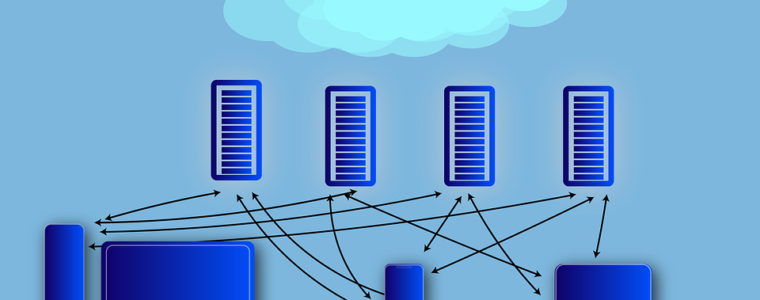
Comparing and Contrasting Computer Infrastructure for Businesses: On-Premise Servers, Cloud-Based Solutions, and Hybrid Models.
Data Protection

Comparing and Contrasting Computer Infrastructure for Businesses: On-Premise Servers, Cloud-Based Solutions, and Hybrid Models.

Introduction:

Choosing the right computer infrastructure is crucial for businesses to ensure efficient operations and scalability. In this article, we will compare and contrast three popular options: on-premise servers with virtualization, cloud-based solutions, and hybrid models combining both on-premise and cloud solutions. We will explore their features, benefits, and suggest specific situations that can influence the choice of infrastructure.        

1. On-Premise Servers with Virtualization:

On-premise servers involve hosting hardware and software infrastructure within the organization's premises. Virtualization allows for the creation of multiple virtual machines on a single physical server, maximizing resource utilization.   Benefits: - Complete control: Businesses have full control over their infrastructure, including security measures and data storage. - Compliance requirements: Industries with strict data security regulations may prefer on-premise servers to ensure compliance. - Customization: On-premise solutions offer flexibility in tailoring hardware and software configurations to meet specific requirements.   Suitable Situations: - Highly sensitive data: Industries dealing with sensitive data, such as finance or healthcare, may opt for on-premise servers to maintain direct control and enhance data security. - Legacy systems: Businesses heavily relying on legacy systems may find it more practical to continue using on-premise servers for seamless integration.    

2. Cloud-Based Solutions:

Cloud-based solutions involve hosting infrastructure and services on remote servers accessible through the internet. Resources are dynamically allocated based on demand, providing scalability and flexibility.   Benefits: - Scalability: Cloud solutions offer the ability to scale resources up or down quickly, accommodating fluctuating business needs. - Cost-effective: Cloud services operate on a pay-as-you-go model, reducing upfront infrastructure costs and enabling cost optimization. - Accessibility and collaboration: Cloud infrastructure allows for remote access and collaboration, facilitating seamless teamwork.   Suitable Situations: - Startups and small businesses: Cloud solutions offer a cost-effective and scalable option, allowing startups and small businesses to focus on core operations without substantial upfront investments. - Agile and remote work environments: Cloud-based infrastructure enables remote teams to access resources from anywhere, promoting collaboration and flexibility.    

3. Hybrid Mode with On-Premise and Cloud Solutions:

Hybrid models combine on-premise servers and cloud-based services, allowing businesses to leverage the benefits of both environments. It provides the flexibility to allocate workloads based on specific needs.   Benefits: - Scalability and flexibility: Businesses can scale resources by utilizing the cloud while maintaining critical applications on-premise. - Disaster recovery and backup: Hybrid models provide redundancy and backup options, ensuring data resilience and recovery. - Cost optimization: Organizations can optimize costs by utilizing on-premise servers for stable workloads and leveraging the cloud for fluctuating demands.   Suitable Situations: - Regulatory compliance with data location: Hybrid models allow businesses to keep sensitive data on-premise while utilizing cloud services for non-sensitive operations. - Seasonal workloads: Companies with fluctuating demands can benefit from the scalability of the cloud during peak seasons while relying on on-premise infrastructure during off-peak periods.  

Conclusion:

Choosing the right computer infrastructure for businesses requires careful consideration of their unique needs and priorities. On-premise servers offer control and customization, while cloud-based solutions provide scalability and cost-effectiveness. Hybrid models combine the best of both worlds, enabling businesses to balance control, scalability, and cost optimization. By evaluating specific situations and requirements, organizations can make informed decisions to build a robust and efficient computer infrastructure that aligns with their goals and supports their growth.
Read More
A Comprehensive Comparison of Popular Payment Gateways: Exploring Pros and Cons
Data Protection

A Comprehensive Comparison of Popular Payment Gateways: Exploring Pros and Cons

Introduction:

  In the digital era, online businesses rely on secure and efficient payment gateways to facilitate transactions and ensure smooth financial operations. Numerous payment gateways are available in the market, each offering its own set of features and advantages. In this article, we will explore and compare eleven popular payment gateways, including Paypal, 2CheckOut, Stripe, WorldPay, GooglePay, ApplePay, AliPay, WePay, Skrill, BrainTree, and Adyen. By examining their pros and cons, we aim to help businesses make informed decisions when selecting the most suitable payment gateway for their online ventures.      

1. Paypal:

  Paypal is one of the most widely recognized and trusted payment gateways globally. It allows businesses and individuals to send and receive payments securely online.   Pros: - Brand Recognition: Paypal enjoys widespread recognition and trust among consumers, which can increase conversion rates. - User-Friendly Interface: Paypal offers a simple and intuitive interface, making it easy for businesses and customers to navigate the payment process. - Global Reach: Paypal supports transactions in multiple currencies, allowing businesses to cater to international customers.   Cons: - Transaction Fees: Paypal charges transaction fees, which can be relatively higher compared to some other payment gateways. - Limited Customization: Paypal's checkout process and appearance are standardized, providing limited flexibility for businesses to match their brand identity. - Account Holds: Paypal has a reputation for placing holds on funds in certain cases, which can be inconvenient for businesses.    

2. 2CheckOut:

  2CheckOut is a payment gateway that enables businesses to accept online payments from customers worldwide.   Pros: - Global Reach: 2CheckOut supports transactions in multiple currencies and offers localized payment options, allowing businesses to expand their international reach. - Secure and Reliable: 2CheckOut employs robust fraud protection measures and secure payment processing, ensuring safe transactions for businesses and customers. - Easy Integration: 2CheckOut provides user-friendly integration options with popular e-commerce platforms and APIs.   Cons: - Limited Payment Methods: 2CheckOut's available payment methods may be more limited compared to some other payment gateways, which could potentially affect conversion rates. - Transaction Fees: 2CheckOut charges transaction fees, which may vary depending on the business's location and the payment method used. - Support Availability: Some users have reported challenges in obtaining timely and responsive support from 2CheckOut.    

3. Stripe:

  Stripe is a versatile payment gateway that offers a developer-friendly platform, allowing businesses to integrate and customize payment processing in their applications.   Pros: - Developer-Focused: Stripe provides extensive documentation, APIs, and libraries, making it a popular choice for businesses with specific customization requirements. - Transparent Pricing: Stripe offers straightforward pricing with no setup fees, monthly fees, or hidden costs. Transaction fees vary based on the business's location and payment method. - International Support: Stripe supports transactions in multiple currencies and offers localized payment options, enabling global expansion.   Cons: - Account Stability: Stripe's risk management measures can sometimes result in account holds or suspensions, which may cause disruptions for businesses. - Integration Complexity: While Stripe offers powerful customization options, integrating and configuring the payment gateway may require technical expertise. - Limited Customer Support: Some users have reported challenges in accessing timely and responsive customer support from Stripe.    

4. WorldPay:

  WorldPay is a leading global payment gateway that provides a range of payment solutions for businesses of all sizes.   Pros: - Extensive Payment Methods: WorldPay supports a wide array of payment methods, including credit cards, e-wallets, and alternative payment options, catering to diverse customer preferences. - Multi-Currency Support: WorldPay enables businesses to accept payments in multiple currencies, facilitating international transactions. - Advanced Fraud   Prevention: WorldPay offers robust fraud prevention tools and risk management features to protect businesses from fraudulent activities.   Cons: - Pricing Complexity: WorldPay's pricing structure can be complex, with various fees and additional charges based on the business's specific requirements and transaction volumes. - Contractual Obligations: WorldPay often requires businesses to enter into long-term contracts, which may limit flexibility and make it challenging to switch providers if necessary. - Support Limitations: Some users have reported difficulties in obtaining responsive and helpful customer support from WorldPay.    

5. GooglePay:

  GooglePay is a digital wallet and payment gateway offered by Google, allowing users to make payments using their saved cards and enabling businesses to accept online payments.   Pros: - Ease of Use: GooglePay offers a seamless and convenient payment experience for users, leveraging their existing Google accounts. - Fast Checkout: GooglePay facilitates quick checkout experiences, reducing cart abandonment rates and improving conversions. - Enhanced Security: GooglePay employs advanced security measures, including tokenization, to protect user data and transactions.   Cons: - Limited Availability: GooglePay may have limited availability in certain regions, which could restrict its usage for businesses targeting specific markets. - Integration Complexity: Integrating GooglePay into an existing e-commerce platform or website may require technical expertise or reliance on third-party plugins. - Transaction Limits: GooglePay may have transaction limits, which businesses need to consider for high-value transactions.    

6. ApplePay:

  ApplePay is a mobile payment and digital wallet solution provided by Apple, allowing users to make payments using their Apple devices.   Pros: - Seamless User Experience: ApplePay offers a convenient and frictionless payment experience for users with Apple devices, utilizing biometric authentication (Touch ID or Face ID) for added security. - Brand Trust: ApplePay benefits from the strong brand reputation and trust associated with Apple products and services. - Increased Conversions: The streamlined checkout process and user-friendly interface of ApplePay can contribute to improved conversion rates for businesses.   Cons: - Limited Device Compatibility: ApplePay is exclusive to Apple devices, potentially excluding a significant portion of users who prefer other platforms. - Integration Complexity: Integrating ApplePay into an e-commerce platform or website may require specific technical skills and knowledge of Apple's development guidelines. - Restricted Access: ApplePay's availability may be limited to certain countries and regions, limiting its usability for businesses targeting global audiences.    

7. AliPay:

  AliPay, operated by Alibaba Group, is a widely used digital wallet and payment gateway in China, providing seamless online and offline payment solutions.   Pros: - Dominant Market Presence: AliPay holds a significant market share in China, making it an essential payment gateway for businesses targeting the Chinese market. - Wide User Adoption: AliPay is widely adopted by Chinese consumers, allowing businesses to tap into a large customer base. - Integrated Ecosystem: AliPay offers additional features and services beyond payment processing, such as digital wallets, money transfers, and financial management tools.   Cons: - Geographic Limitations: AliPay's prominence is primarily limited to China, making it less relevant for businesses targeting international customers. - Compliance Requirements: Businesses seeking to accept AliPay may need to comply with specific regulations and requirements imposed by Chinese authorities. - Integration Challenges: Integrating AliPay into non-Chinese e-commerce platforms or websites may involve technical complexities and additional considerations.    

8. WePay:

  WePay is a payment gateway that provides customizable payment solutions for online platforms, marketplaces, and crowdfunding platforms.   Pros: - Platform-Focused: WePay specializes in catering to online platforms and marketplaces, offering tailored payment solutions for businesses operating in those domains. - Easy Integration: WePay provides well-documented APIs and developer tools, facilitating seamless integration with various platforms and applications. - Risk Management: WePay offers robust fraud detection and prevention measures, reducing the risk of fraudulent transactions for businesses.   Cons: - Limited Business Types: WePay's primary focus on platforms and marketplaces may limit its suitability for businesses operating outside those categories. - Restricted Accessibility: WePay's availability may be limited to certain countries or regions, potentially excluding businesses targeting global markets. - Customer Support: Some users have reported challenges in obtaining responsive and satisfactory customer support from WePay.    

9. Skrill:

  Skrill is a digital wallet and payment gateway that enables businesses and individuals to send and receive payments globally.   Pros: - Global Reach: Skrill supports transactions in multiple currencies, allowing businesses to operate in diverse international markets. - Multiple Payment Methods: Skrill offers a wide range of payment options, including credit cards, bank transfers, and e-wallets, providing flexibility for businesses and customers. - Enhanced Security: Skrill utilizes advanced security measures, including two-factor authentication and encryption, to protect user data and transactions.   Cons: - Transaction Fees: Skrill charges transaction fees, which can vary depending on factors such as the payment method, currency conversion, and transaction volume. - Withdrawal Restrictions: Skrill imposes certain limitations on withdrawal amounts and frequency, which may inconvenience businesses with specific cash flow requirements. - Customer Support: Some users have reported challenges in receiving timely and satisfactory customer support from Skrill.    

10. BrainTree:

  BrainTree, owned by PayPal, is a full-stack payment platform that offers businesses a wide range of payment options and features.   Pros: - Comprehensive Payment Solutions: BrainTree provides businesses with various payment methods, including credit cards, digital wallets, and alternative payment options, all integrated into a single platform. - Developer-Friendly: BrainTree offers well-documented APIs and developer tools, allowing businesses to customize and integrate payment processing into their applications. - Fraud Protection: BrainTree incorporates advanced fraud detection and prevention mechanisms to safeguard businesses from fraudulent transactions.   Cons: - Complexity for Small Businesses: BrainTree's extensive feature set and customization options may be overwhelming for smaller businesses with limited technical resources. - Transaction Fees: BrainTree charges transaction fees, which can vary based on the business's location, transaction volume, and the payment method used. - Customer Support: Some users have reported challenges in obtaining responsive and satisfactory customer support from BrainTree.    

11. Adyen:

  Adyen is a global payment gateway that provides businesses with a unified platform to accept payments across multiple channels and countries.   Pros: - Global Expansion: Adyen supports transactions in numerous currencies and provides localized payment options, enabling businesses to expand their operations globally. - Omni-Channel Capabilities: Adyen facilitates payments across various channels, including online, mobile, in-store, and in-app, offering a seamless and consistent payment experience. - Advanced Reporting and Analytics: Adyen provides comprehensive reporting and analytics tools, allowing businesses to gain insights into their transactions and customer behavior.   Cons: - Pricing Structure: Adyen's pricing structure can be complex, with various fees and charges that may vary based on the business's specific requirements and transaction volumes. - Onboarding Process: Some users have reported a lengthy onboarding process and strict underwriting requirements when setting up an account with Adyen. - Support Availability: While Adyen offers customer support, some users have reported challenges in receiving prompt and satisfactory assistance.    

Conclusion:

  Selecting the right payment gateway is a crucial decision for online businesses. Paypal, 2CheckOut, Stripe, WorldPay, GooglePay, ApplePay, AliPay, WePay, Skrill, BrainTree, and Adyen are among the popular payment gateways available today, each offering distinct features, advantages, and limitations. Businesses must consider factors such as global reach, ease of integration, transaction fees, security measures, customer support, and compatibility with their target markets and platforms. By carefully evaluating the pros and cons of these payment gateways, businesses can make informed decisions and choose the most suitable solution to streamline their payment processes, enhance user experience, and drive business growth.      

Read More
Linux Distro Comparison
Data Protection

Linux Distro Comparison

Introduction:

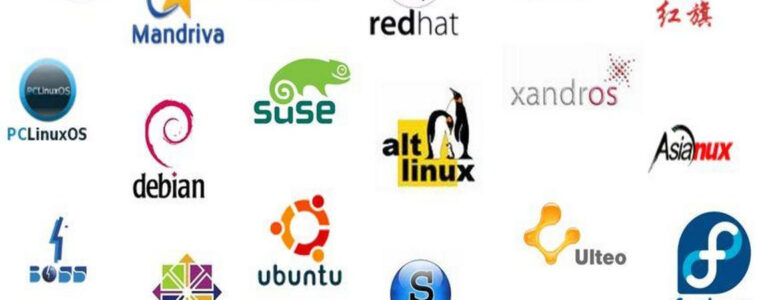
Linux, an open-source operating system, has gained immense popularity due to its stability, security, and flexibility. One of the significant advantages of Linux is the availability of various distributions (distros), each tailored to meet specific needs and preferences. This article provides an in-depth introduction and comparison of different Linux distros, analyzing their characteristics, pros and cons, and industrial use-cases.        

1. Red Hat Enterprise Linux (RHEL):

RHEL is a widely recognized Linux distro renowned for its stability and security. It is designed for enterprise-level environments and offers long-term support and robust system management tools. RHEL is extensively used in industries such as finance, healthcare, and government sectors where stability and security are paramount.   Pros: - Exceptional stability and reliability. - Comprehensive support and frequent updates. - Strong system management and security features. - Extensive hardware and software compatibility. - Suitable for large-scale enterprise environments.   Cons: - Requires paid subscriptions for full access to updates and support. - Not as suitable for personal or small-scale usage. - Limited availability of bleeding-edge software.    

2. SUSE Linux Enterprise Server (SLES):

SLES is another enterprise-grade Linux distro known for its scalability, high availability, and robust management capabilities. It offers excellent support and maintenance options, making it a popular choice for mission-critical systems in industries such as manufacturing, retail, and telecommunications.   Pros: - Robust and scalable enterprise-level features. - Extensive support and maintenance options. - High availability and clustering capabilities. - Excellent interoperability with other platforms. - Suitable for large-scale deployments.   Cons: - Some proprietary features are not freely available. - Limited software package selection compared to other distros. - Steeper learning curve for novice users.    

3. Ubuntu:

Ubuntu is a user-friendly Linux distro based on Debian. It focuses on ease of use, accessibility, and community-driven development. Ubuntu is widely adopted in various domains, including desktop computing, servers, and cloud deployments.   Pros: - Beginner-friendly and easy to install and use. - Large and active community support. - Regular and frequent updates. - Extensive software repository. - Suitable for both personal and server usage.   Cons: - Less emphasis on enterprise features compared to RHEL or SLES. - Occasional compatibility issues with specific hardware. - Some releases may not offer long-term support.  


4. Oracle Linux:

Oracle Linux is based on Red Hat Enterprise Linux and offers similar enterprise-level features and compatibility. It is designed specifically to support Oracle software and is commonly used in Oracle database deployments.   Pros: - High compatibility with Oracle software. - Strong integration with Oracle's hardware and software stack. - Excellent support and documentation for Oracle products. - Inherits stability and security features from RHEL.   Cons: - Not as widely supported as other Linux distros. - Limited use-case beyond Oracle software deployments. - Requires additional licensing for certain features.    

5. ClearOS:

ClearOS is a Linux distro focused on simplicity and network management. It provides a user-friendly interface and offers robust networking and gateway features, making it suitable for small business environments.   Pros: - Easy to install and manage. - Extensive network management capabilities. - Integrated gateway and firewall features. - User-friendly web-based interface. - Designed for small business environments.   Cons: - Limited availability of specialized applications and packages. - Less suitable for advanced server configurations. - Not as widely adopted as other distros.    

6. Debian:

Debian is one of the oldest and most respected Linux distros. It is known for its stability, security, and commitment to free software. Debian is highly versatile and used in a wide range of applications, from personal desktops to web servers.   Pros: - Outstanding stability and security track record. - Wide range of software packages available. - Community -driven development and extensive documentation. - Excellent support for multiple architectures. - Suitable for both personal and server usage.   Cons: - Releases may have longer intervals compared to other distros. - Not as user-friendly for beginners. - Limited commercial support compared to enterprise-focused distros.    

7. CentOS:

CentOS is a community-driven, open-source version of RHEL. It aims to provide a free and compatible alternative to RHEL without the need for subscriptions. CentOS is commonly used in server deployments and acts as a stable and reliable platform.   Pros: - High compatibility with RHEL. - Stable and reliable for server deployments. - Large and active user community. - Regular security updates. - Suitable for those seeking RHEL compatibility without the associated costs.   Cons: - Updates and support may have delays compared to RHEL. - Limited availability of enterprise-level features. - Not as suitable for desktop or personal usage.    

8. Rocky Linux:

Rocky Linux is a community-driven Linux distro developed as a replacement for CentOS after its shift in focus. It aims to provide a free and stable alternative to RHEL, focusing on compatibility and long-term support.   Pros: - Designed as a direct replacement for CentOS. - High compatibility with RHEL. - Strong community support. - Stability and long-term support. - Suitable for those seeking RHEL compatibility without the associated costs.   Cons: - Relatively new compared to other distros, leading to potential bugs or issues. - May have a learning curve for users familiar with CentOS.    

9. Arch Linux:

Arch Linux is a lightweight and highly customizable Linux distro known for its simplicity, rolling release model, and extensive package manager. It targets experienced Linux users who prefer a minimalistic and DIY approach.   Pros: - Lightweight and highly customizable. - Rolling release model for up-to-date software. - Vast package manager and user repository. - Excellent documentation and community support. - Suitable for advanced users and enthusiasts.   Cons: - Steeper learning curve for newcomers. - Requires manual configuration and maintenance. - May be less stable compared to more conservative distros.    

10. Kali Linux:

Kali Linux is a specialized Linux distro focused on cybersecurity and penetration testing. It comes with a comprehensive set of pre-installed tools for ethical hacking, making it a popular choice among security professionals and researchers.   Pros: - Extensive collection of security tools. - Regularly updated with the latest security-related software. - Active community support and documentation. - Ideal for cybersecurity professionals and enthusiasts.   Cons: - Not designed for general-purpose usage. - Less user-friendly for non-security professionals. - Limited software package selection beyond security tools.    

11.Fedora:

Fedora is a community-driven Linux distro sponsored by Red Hat. It focuses on providing cutting-edge features, rapid updates, and a platform for innovation. Fedora is popular among developers and enthusiasts.   Pros: - Frequent updates with the latest software versions. - Emphasis on open-source and bleeding-edge technologies. - Active community support and involvement. - Suitable for developers and enthusiasts. - Good compatibility with Red Hat ecosystem.   Cons: - Less stability compared to more conservative distros. - Shorter support lifespan for non-LTS releases. - Potential compatibility issues with certain hardware or software.    

12. Scientific Linux:

Scientific Linux is a Linux distro specifically designed for scientific and research environments. It aims to provide a stable and secure platform for scientific computing and related applications.   Pros: - Tailored for scientific and research applications. - Stability and long-term support. - Good compatibility with scientific software. - Community-driven development and support.   Cons: - Limited use-case beyond scientific computing. - Less software package selection compared to general-purpose distros. - Potential compatibility issues with non-scientific software.  

Conclusion:

Linux offers a vast range of distros, each with its own strengths and target audiences. RHEL and SLES are well-suited for enterprise environments, while Ubuntu and Debian cater to both personal and server usage. CentOS and Rocky Linux provide alternatives to RHEL without the associated costs. Arch Linux and Fedora focus on cutting-edge features and customization, while Kali Linux serves the cybersecurity community. ClearOS targets small businesses, and Scientific Linux caters to scientific computing needs. When choosing a Linux distro, consider factors such as stability, support, software availability, community support, and compatibility with your specific use-case. It's important to evaluate your requirements and priorities to select the Linux distro that best aligns with your needs and preferences.
Read More
Exploring Popular Open Source Backup Solutions: A Comprehensive Comparison
Data Protection

Exploring Popular Open Source Backup Solutions: A Comprehensive Comparison

Introduction:

Data backup is a critical aspect of modern business operations, ensuring the protection and availability of valuable data. Open source backup solutions have gained significant popularity due to their cost-effectivenesss, flexibility, and active community support. In this article, we will delve into several popular open source backup solutions, highlighting their features, advantages, and disadvantages. By understanding these options, businesses can make informed decisions when selecting the most suitable backup solution for their needs.      

1. Bacula:

  Bacula is a robust and scalable open source backup and recovery software. It offers advanced features such as client-server architecture, data deduplication, and multi-volume backups.   Pros:
  • Scalability: Bacula can handle large-scale environments with hundreds or thousands of clients.
  • Flexibility: It supports various storage devices and media types, including tape drives, disk arrays, and cloud storage.
  • Robustness: Bacula is known for its stability and reliability, ensuring data integrity and recoverability.
  Cons:
  • Complexity: Bacula has a steep learning curve and requires experienced administrators for setup and configuration.
  • Lack of User-Friendly Interface: The user interface may be overwhelming for novice users, requiring familiarity with command-line tools.
  • Initial Configuration: Setting up Bacula can be time-consuming and requires careful planning to design an optimal backup infrastructure.
   

2. Amanda:

  Amanda (Advanced Maryland Automatic Network Disk Archiver) is an open source backup solution designed for easy installation and management. It offers features like network transparency, incremental backups, and support for various platforms.   Pros:
  • Simplicity: Amanda provides a user-friendly interface and straightforward configuration, making it suitable for small to medium-sized businesses.
  • Network Efficiency: It optimizes network bandwidth usage by performing incremental backups and using compression techniques.
  • Platform Support: Amanda supports a wide range of operating systems, making it versatile for heterogeneous environments.
  Cons:
  • Limited Scalability: Amanda may face challenges in handling large-scale environments with a high number of clients or large data volumes.
  • Lacks Advanced Features: Compared to some other open source backup solutions, Amanda may have limited advanced features like data deduplication or integration with cloud storage.
  • Community Support: While Amanda has an active user community, the level of community support may be lower compared to other solutions.
   

3. Duplicati:

  Duplicati is an open source backup software focused on secure cloud backup solutions. It offers features such as encryption, deduplication, and backup to popular cloud storage providers.   Pros:
  • Cloud Compatibility: Duplicati integrates seamlessly with popular cloud storage providers like Amazon S3, Google Drive, and Dropbox.
  • Encryption and Security: It provides strong encryption options to ensure data confidentiality during transmission and storage.
  • Deduplication: Duplicati employs deduplication techniques, reducing storage space requirements and network bandwidth usage.
  Cons:
  • Performance: Duplicati's deduplication process can be resource-intensive, affecting backup and restore speeds, particularly for large datasets.
  • Limited Local Storage Support: While Duplicati excels in cloud backup, it may have limitations when it comes to local storage options or network-attached storage devices.
  • User Interface: Some users may find the user interface less intuitive, requiring a learning curve to navigate and configure backup jobs effectively.
   

4. UrBackup:

  UrBackup is an open source client-server backup system that supports both file and image-based backups. It offers features such as deduplication, incremental backups, and centralized management.   Pros:
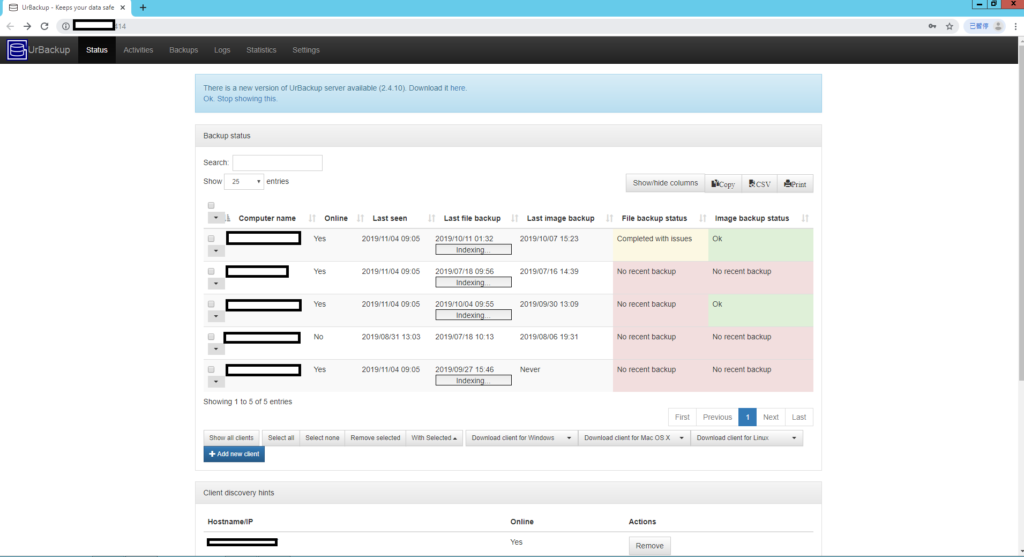
  • Ease of Use: UrBackup provides a user-friendly web interface for easy configuration and monitoring of backup tasks.
  • Image-Based Backups: It supports full system image backups, allowing complete system recovery in case of hardware failures or disasters.
  • Cross-Platform Compatibility: UrBackup supports various operating systems, including Windows, Linux, and macOS, facilitating backup in heterogeneous environments.
  Cons:
  • Limited Advanced Features: Compared to some other open source backup solutions, UrBackup may have fewer advanced features such as cloud integration or replication options.
  • Scalability: While UrBackup can handle small to medium-sized environments efficiently, it may face scalability challenges in larger deployments with numerous clients and extensive data volumes.
  • Community Support: Although UrBackup has an active user community, the level of community support may be relatively lower compared to more widely adopted solutions.


Conclusion:

Open source backup solutions provide businesses with cost-effective and flexible options for safeguarding their valuable data. Bacula, Amanda, Duplicati, and UrBackup are just a few examples of popular open source backup solutions, each offering unique features and capabilities. When selecting a backup solution,it's essential to consider factors such as scalability, ease of use, advanced features, and community support. By understanding the pros and cons of these open source solutions, businesses can make informed decisions and implement a backup strategy that aligns with their specific needs and requirements.        

Read More
Safeguarding Small Businesses from Ransomware and Cyber Threats: Cost-Effective Measures
Data Protection

Safeguarding Small Businesses from Ransomware and Cyber Threats: Cost-Effective Measures

Introduction:

In an increasingly digital world, small businesses are becoming prime targets for cybercriminals seeking to exploit vulnerabilities and extort money through ransomware attacks and other cyber threats. Protecting sensitive data, securing critical systems, and mitigating potential risks is crucial for small businesses and other cyber threats, ensuring their operations remain secure and uninterrupted.        

1. Awareness and Training:

One of the most cost-effective measures to protect small businesses from ransomware and cyber threats is to invest in employee awareness and training programs. Key steps include: a) Educate Employees: Train employees on the basics of cybersecurity, including how to identify phishing emails, suspicious websites, and social engineering techniques. Raise awareness about the potential consequences of ransomware attacks and the importance of adhering to security policies. b) Establish Password Hygiene: Encourage employees to use strong, unique passwords and enable two-factor authentication (2FA) whenever possible. Emphasize the importance of regularly changing passwords and avoiding common security pitfalls like password sharing or reuse. c) Conduct Simulated Phishing Exercises: Regularly perform simulated phishing exercises to test employees' susceptibility to phishing attacks. Use these exercises as learning opportunities and provide feedback to improve their awareness and response. d) Promote a Security Culture: Foster a culture of cybersecurity within the organization by encouraging employees to report suspicious activities, promoting open dialogue about security concerns, and recognizing and rewarding good security practices.    

2.Regular Software Updates and Patch Management:

Keeping software and operating systems up to date is crucial for safeguarding small businesses from known vulnerabilities. These steps can help mitigate risks: a) Implement Automatic Updates: Enable automatic updates for all software and operating systems to ensure timely installation of security patches. This includes operating systems, antivirus software, web browsers, and other critical applications. b) Regularly Monitor Vulnerabilities: Stay informed about vulnerabilities and security updates by subscribing to vendor mailing lists or security websites. Promptly address any known vulnerabilities by applying patches or implementing mitigation measures. c) Utilize Vulnerability Scanners: Regularly scan networks and systems using vulnerability scanning tools to identify potential weaknesses. Address any identified vulnerabilities promptly to minimize the risk of exploitation.  

3. Robust Backup and Recovery:

In the event of a ransomware attack or data breach, having a reliable backup can save a small business significant financial and operational losses. Consider the following measures: a) Implement Regular Backup Procedures: Establish a routine backup schedule to ensure critical data is regularly backed up. Store backups on separate offline or cloud-based storage, isolated from the primary network, to prevent ransomware from infecting backups. b) Test Data Restoration: Periodically test data restoration processes to verify the integrity and reliability of backups. Ensure backups are accessible, and data can be restored promptly in the event of an incident. c) Adopt the 3-2-1 Backup Rule: Follow the 3-2-1 backup rule, which suggests having three copies of data, stored on two different storage types, with one copy stored offsite. This approach provides redundancy and enhances protection against data loss.  

4. Multi-layered Security Approach:

Implementing a multi-layered security approach helps defend against various attack vectors and provides comprehensive protection: a) Endpoint Protection: Deploy robust antivirus software and endpoint protection solutions to detect and block malware, ransomware, and other malicious threats at the endpoint level. b) Firewalls and Network Segmentation: Utilize firewalls and implement network segmentation to separate critical systems from regular network traffic. This helps contain potential breaches and limit the spread of malware. c) Email Filtering and Web Security: Employ email filtering solutions to block spam, phishing, and malicious attachments.   Additionally, implement web security measures to block access to known malicious websites and prevent drive-by downloads.   d) Intrusion Detection and Prevention Systems (IDPS): Implement IDPS to monitor network traffic, detect suspicious activities, and block potential intrusions in real-time. e) Secure Remote Access: Ensure secure remote access protocols are in place, such as virtual private networks (VPNs), to encrypt data transmission and authenticate remote users.  

5. Incident Response and Recovery Plan:

Preparing for potential cyber incidents can minimize their impact and facilitate a faster recovery: a) Develop an Incident Response Plan: Create a documented incident response plan outlining roles, responsibilities, and procedures to be followed in case of a security incident. Regularly review and update the plan to align with evolving threats. b) Establish Communication Channels: Define clear communication channels to report and respond to security incidents promptly. Designate individuals responsible for coordinating incident response efforts and establishing communication with relevant stakeholders. c) Engage with Cybersecurity Experts: Establish relationships with cybersecurity professionals who can provide guidance and assistance during security incidents. Consider partnering with managed security service providers (MSSPs) for continuous monitoring and incident response capabilities. d) Regularly Test Incident Response Readiness: Conduct periodic tabletop exercises and simulations to test the effectiveness of the incident response plan. Identify areas for improvement and refine processes based on the outcomes.    

Conclusion:

Protecting small businesses from ransomware and cyber threats is a critical priority in today's digital landscape. By implementing cost-effective measures such as employee awareness and training, regular software updates, robust backup and recovery procedures, multi-layered security approaches, and incident response planning, small businesses can significantly enhance their cybersecurity posture. While no solution guarantees absolute protection, these proactive measures can help small businesses mitigate risks, safeguard their operations, and minimize the potential impact of cyber threats. Remember, investing in cybersecurity is an ongoing effort, requiring vigilance, adaptability, and continuous improvement to stay ahead of evolving threats.              
Read More
Backup ESXi, vCenter, ESXi Free, Hyper-V and Database with Lowest Possible Investment
Data Protection

Backup ESXi, vCenter, ESXi Free, Hyper-V and Database with Lowest Possible Investment

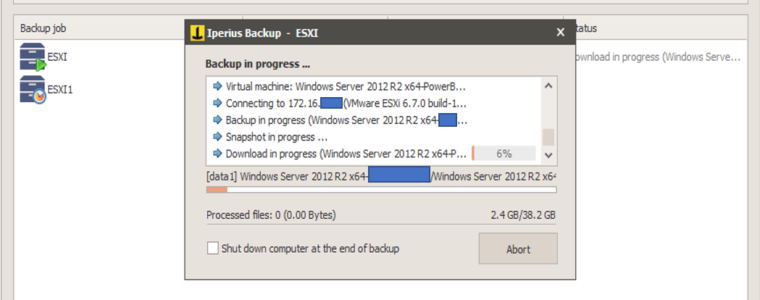
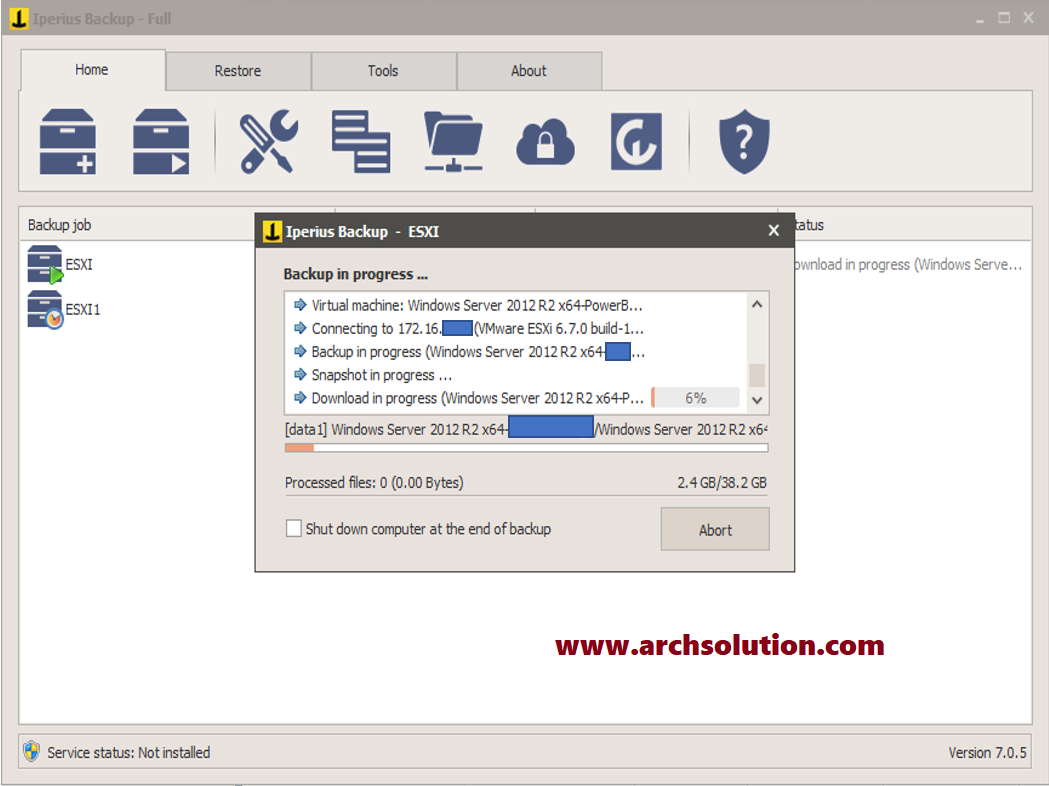
Even we are migrating application and database servers to an Open-stack environment, but there are still lots of Virtual Machines being maintained by our clients and our team. Unfortunately, most of the Enterprise class backup solutions are not able to backup ESXi free version.  Otherwise, many other tools are allowed to backup ESXi free images but counted by each guest nodes.  The cost will be extremely high and not worth for ESXi free or other virtual environment like Hyper-V.  We will spend some time to try and test different products in the market.  Finally, we have picked up Iperius – a software vendor in Italy for doing the backup task for 10 guest live images of ESXi free.  It is powerful, complete, and extremely easy-to-use. It supports incremental and differential backup of ESXi (CBT/VDDK) virtual machines, including the free ESXi Free version. Further, Iperius supports the replication of virtual machines from datastore to datastore and from host to host, to have an exact copy of virtual machines always ready to be started in case of malfunction or crash of the main machine. Replication can also be planned and performed on multiple destinations, thus enabling an optimal failover policy. The most significant features of Iperius for this kind of backup are being list below:

  1. Incremental and differential backups of virtual machines (full support for Changed Block Tracking (CBT/VDDK));
  2. Backup of ESXi Free (the free vSphere Hypervisor version), including incremental and differential backups;
  3. Replication of virtual machines from host to host and from datastore to datastore (to have an immediately bootable copy in case of crash)
  4. Incremental Replication even between ESXi Free hosts
  5. Backups only of the disk space that is actually being used;
  6. Restore of individual files (file-level restore)
  7. Full support for connecting to VMware vCenter Server and ESXi Cluster
  8. Auto-restore of virtual machines, including on different hosts (also useful for the replication/cloning of virtual machines);
  9. Extremely lightweight and stable software (Iperius is also portable and does not install anything that will affect the performance of the server);
  10. Compatible with all ESXi (4.x, 5.x, 6.x) versions;
  11. “Application Consistent” backups even of Linux virtual machines, by quiescing the file system with pre-freeze and post-thaw scripts.
  12. There is also the possibility to exclude specific virtual machine disks and manage independent disks;
  13. One of the lowest prices on the market (€ 269), perpetual license, both support and updates are for free;
(Buy from us with further discount!!!)
  1. Agentless: with just one installation, you can back up any virtual machine on the network
  2. Only one license needed for unlimited host and virtual machines;
  3. Complete backup utility with many other features.
Apart from the great features for VM backup, it is possible to use Iperius backup for common database engines such as Microsoft SQL server, Oracle, MySQL and PostgreSQL.  It provides fundamental features like export DDL and data as text.  However, with their scheduling function, it is basically fulfilled most of the small network needs.  Apart from these fruitful features. They offer cloud storage for remote backup. In order to share the great tool using by system experts, we are partnering Iperius to offer this tools for the Hong Kong market.  It is better to have a trial and you can find better price from your local reseller than direct from them.  Also, you can enjoy local support with the reseller with your mother language locally. Please contact us for more information.
Read More
Professional Service Arrangement (30 Jan 2020)
Data Protection

Professional Service Arrangement (30 Jan 2020)

Due to the new corona virus impact and epidemic spread, we may provide remote support to our clients via: 1. Zoom 2. WebEx 3. Microsoft Team 4. Slack Please contact us via email and phone for any arrangement and / or update. Thanks. Regards, Archsolution Limited
Read More
Data Protection

UrBackup Server – free backup solution for SMB

Archsolution Professional Service Team (2019-11-4)

Backup is one of the most important method to protect your digital asset.  However, most of the backup solutions are very expensive and we would like to share one of the freeware options – UrBackup.

In this article, we will focus on the Windows installation only due to the ability to backup Windows client workstation – operating system image.  For download, you can go to the urbackup.org to download different versions.

Installation of UrBackup Software on Windows
  • Download the NSIS (.exe) or MSI installer. You can only use the MSI installer, if you have a 64-bit operating system and at least Windows Vista/2008.
Install the UrBackup Server.
  • Go to the web interface ( http://localhost:55414 ) and then go to the settings and configure the folder where UrBackup should store the backup. This folder should have following properties:
      • It should be on a NTFS formatted volume (not ReFS or FAT).
      • There should be enough free space to accommodate the backups
      • Preferably the volume should be dedicated to UrBackup backups
      • The volume should be persistently online while the UrBackup Server instance is running. UrBackup does not support different backup volumes/drives
      • While migration is possible it will be lengthy and difficult. So best plan ahead.
      • You can easily increase the size of the backup storage volume, if you use Windows dynamic volumes or a hardware raid. If you are using a plain volume change it to a dynamic volume before the first backup.
      • Turn on compression for the urbackup folder (in Explorer: Right click and properties). If you are not using a really old computer it should pay off without decreasing the backup speed. Possible exception: If you plan to backup files with more than 50GB or turn off the image compression and plan to backup volumes with more than 50GB you should not turn on compression. NTFS cannot compress files larger than about 50GB.
      • Alternative to the compression you can use the offline dedup and compression build into Windows Server 2012
      • Disable 8.3 name generation on the volume. See https://support.microsoft.com/en-us/kb/121007 on how to do this. 8.3 name generation causes errors in rare cases, lowers performance and the 8.3 names are only used in rare cases.
      • If you are using Windows Server 2008(R2) (or the equivalent Desktop versions) you should consider consider applying hotfix https://support.microsoft.com/en-us/kb/967351 and then formatting the backup storage volume with
        • Format <Drive:> /FS:NTFS /L
After you have installed the UrBackup server you should perform following steps:
  • Go to the user settings and add an admin account. If you do not do this everybody who can access the server will be able to see all backups!
  • Setup the mail server by entering the appropriate mail server settings.
  • If you want the clients to be able to backup via Internet and not only via local network, configure the public server name or IP of the server in the Internet settings.
  • If you want the clients to be able to access their backups via browser and “right click -> Restore/access backups“‘ enter a server URL. E.g. http://backups.company.com:55414/. Make sure your DNS is configured such that backups.company.com points to the internal IP of the backup server if accessed from the internal network and points to the external IP otherwise. You should put a real web server in front of UrBackup and setup SSL.
  • If you want to get logs of failed backups go the “Logs” screen and configure the reports for you email address.
  • Change any other setting according to your usage scenario.
Client installation (Windows/Mac OS X client installation) If you plan on using the client in the same local network as the server, or the client is in your local network during setup time:
  • Download the client from http://www.urbackup.org.
  • Run the installer.
  • Leave the backuped items at the default, manually select paths to backup or configure the client from the server.
  • The server will automatically find the client and start backups.
If the client is only reachable via Internet/through NAT:
  • Add a new Internet client on the status page.
  • Download the client installer for the Internet client and send it to the new client. Alternatively, create a user for the new client (in the settings) and send the user the username/password. The user can then download the client installer from the server on the status page and install it.
  • Select the backup paths you want to backup on the client or configure appropriate default directories to backup on the server.
  • The server will automatically start backups once the client is connected.
This is the easiest method to add new internet clients. Notes: There are 3 different colours of the “Urbackup” client icon.
  1. Red – not connected
  2. Yellow – backup running
  3. Green – backup complete recently
  Automatic rollout to multiple Windows computers First, if you want to deviate from the default backup path selection, configure the general default backup paths so that the correct folders get backed for each client. Then install the clients using one of the following methods. On local network: Add the MSI client installer as group policy to the domain controller. Alternatively you can use the NSIS (.exe) installer with the switch “/S” to do a silent install and use something like “psexec”. The server will automatically find and backup the new clients. For internet clients: Adapt the script at https://urbackup.atlassian.net/wiki/display/US/Download+custom+client+installer+via+Python to your server URL and create a python executable from the modified script via cx_Freeze (http://cx-freeze.sourceforge.net/). Executing the python executable on the client automatically creates a new internet client on the server, downloads a custom client and runs the installer. You could also add the silent install switch (“/S”) when starting the downloaded installer such that it needs no user intervention. Client installation on Linux If you plan on using the client in the same local network as the server, or the client is in your local network during setup time:
  • Download the portable binary Linux client from http://www.urbackup.org.
  • Run the installer.
  • Select one of the available snapshot mechanisms. If none is available consider installing your Linux on LVM or btrfs. Otherwise you will have to stop all applications during backups which are modifying files via pre/post-backup scripts.
  • The server will automatically find the client and start backups.
If the client is only reachable via Internet/through NAT:
  • Add a new Internet client on the status page.
  • Download the client installer for the Internet client and send it to the new client. Alternatively, create a user for the new client (in the settings) and send the user the username/password. The user can then download the client installer from the server on the status page and install it.
  • Select the backup paths you want to backup on the client via command line (“urbackupclientctl add-backupdir –path /” or configure appropriate default directories to backup on the server.
  • The server will automatically start backups once the client is connected.
Read More